> ## Documentation Index
> Fetch the complete documentation index at: https://docs.sherlocklabs.dev/llms.txt
> Use this file to discover all available pages before exploring further.
> ## Agent Instructions
> Sherlock documentation. In Node.js examples prefer the Sherlock SDK for Node.js (@sherlock-labs/otel).
> In Go examples use the upstream OpenTelemetry Go SDK exactly as shown on /sdk/go/setup and /sdk/go/configuration; Sherlock has no Go distribution.
> Two MCP servers exist. This documentation's search server is at https://sherlock-c8721ead.mintlify.app/mcp. Sherlock's data server, for a user's own logs, traces, and metrics, is at https://mcp.sherlocklabs.dev/mcp and is described at /explore/mcp.
# Get started with Sherlock
> Create an organization, get your collector credentials, send your first data, and open it.
This tutorial takes you from a new account to first data on the Logs, Traces, and Metrics pages.
## What you'll learn
* How to create an organization and find your collector credentials
* How the `env` value routes data into a source
* How to send data from a Node.js service or any OpenTelemetry source
* What first data looks like and how long it takes
* How to ask an AI assistant about the data
## Prerequisites
* A Sherlock account
* A service to instrument, or an OpenTelemetry Collector you can configure
## Step 1: Create an organization
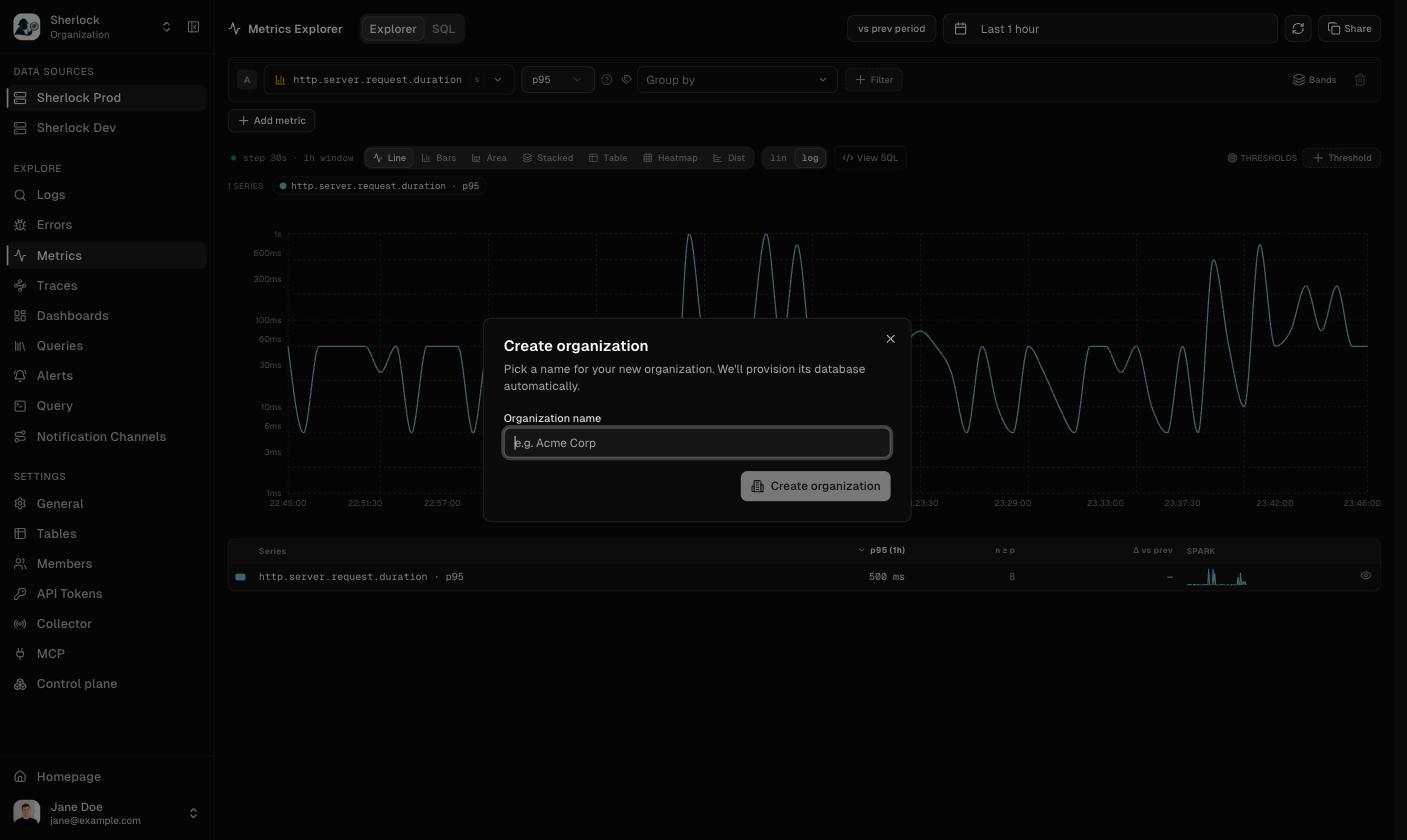
1. Sign in to Sherlock.
2. If you are not in an organization yet, the app asks you to create one. To add another, open the organization switcher at the top of the sidebar and choose **Create organization**.
3. Enter a name and click **Create organization**. Sherlock provisions the organization's database.
 ## Step 2: Get your collector credentials
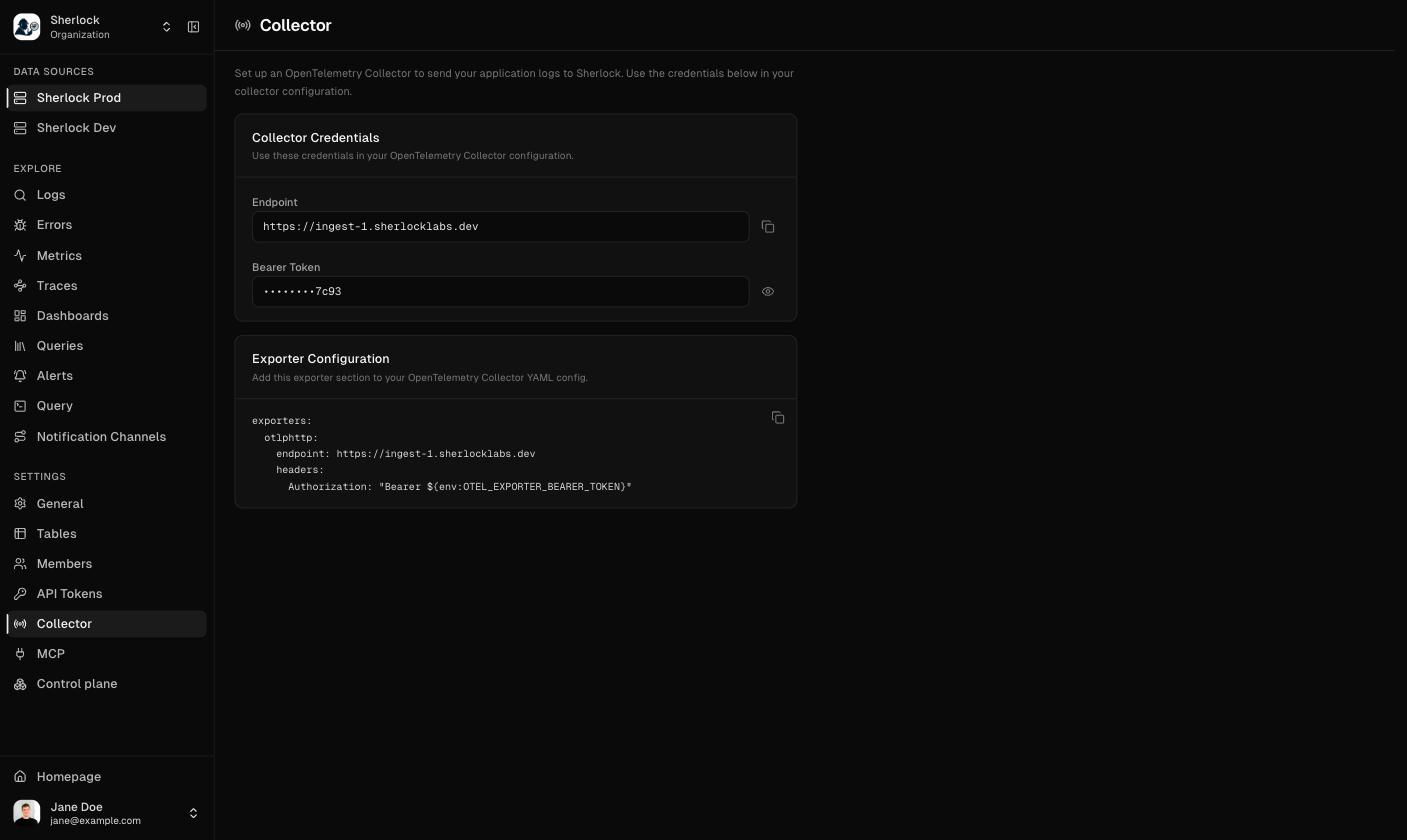
1. Open **Settings** and then **Collector**.
2. In the **Collector Credentials** card, copy the **Endpoint**.
3. Click **Reveal** next to **Bearer Token**, then copy it.
Every exporter that sends to Sherlock needs both values. Keep the token in a secret store.
## Step 2: Get your collector credentials
1. Open **Settings** and then **Collector**.
2. In the **Collector Credentials** card, copy the **Endpoint**.
3. Click **Reveal** next to **Bearer Token**, then copy it.
Every exporter that sends to Sherlock needs both values. Keep the token in a secret store.
 ## Step 3: Choose the env value
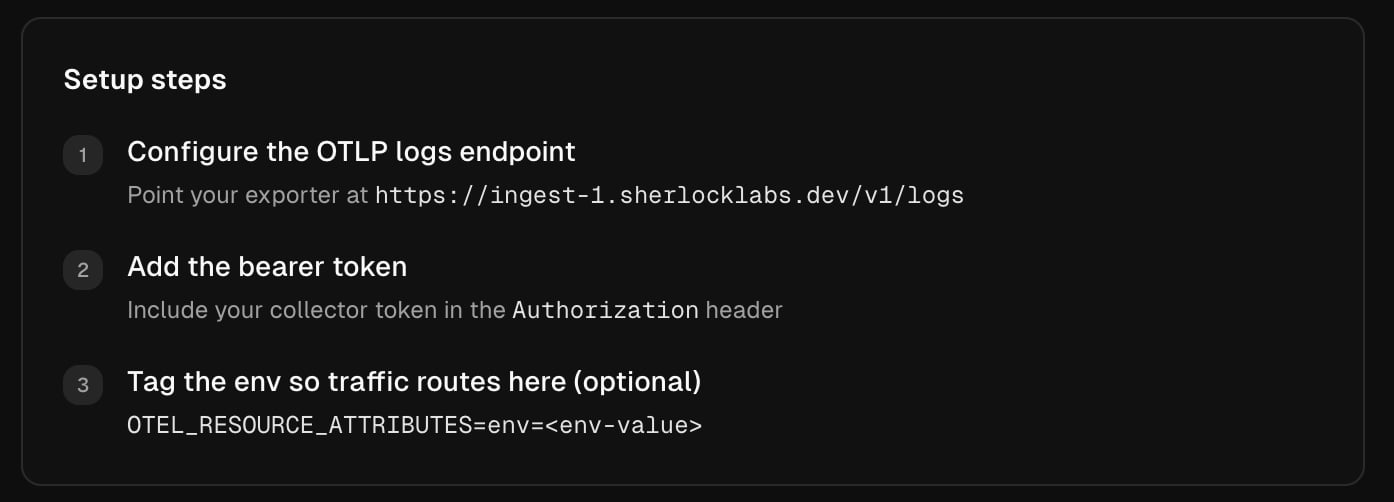
Sherlock routes incoming data into a source by the `env` resource attribute. Decide one value per deployment of a service, for example `prod` or `staging`, and set it on every exporter:
```sh theme={null}
OTEL_RESOURCE_ATTRIBUTES=env=prod
```
The empty state of the Logs, Traces, and Metrics pages shows this attribute next to the endpoint and the token until data arrives.
## Step 3: Choose the env value
Sherlock routes incoming data into a source by the `env` resource attribute. Decide one value per deployment of a service, for example `prod` or `staging`, and set it on every exporter:
```sh theme={null}
OTEL_RESOURCE_ATTRIBUTES=env=prod
```
The empty state of the Logs, Traces, and Metrics pages shows this attribute next to the endpoint and the token until data arrives.
 ## Step 4: Send data
Install the Sherlock SDK, register it, and set three environment variables. The [Node.js quickstart](/sdk/nodejs/quickstart) walks through it in ten minutes.
Point an OTLP/HTTP exporter at the endpoint, add `Authorization: Bearer `, and set the `env` attribute. See [OpenTelemetry SDKs and collectors](/send-data/otlp).
## Step 5: Open the data
* **Traces** shows a service within seconds of its first request.
* **Metrics** lists a metric after the sender's first export interval. The catalog refreshes every 60 seconds.
* **Logs** shows a log line within about a minute. Logs need their own sender: the Node.js SDK does not ship them. See [Ship and correlate logs](/sdk/nodejs/add-telemetry#10-ship-and-correlate-logs) or send them through a collector.
## Step 6: Ask about it
Sherlock has an MCP server, so an AI client can answer questions over the same data. Connect Claude Code with one command and ask:
```sh theme={null}
claude mcp add sherlock -t http "https://mcp.sherlocklabs.dev/mcp"
```
* "Tell me about the state of the system using the Sherlock MCP tools"
* "Group today's errors and tell me which one is new"
The setup for the Claude apps, Cursor, VS Code, and Codex is in [Ask an AI assistant](/explore/mcp).
## Troubleshooting
Check the endpoint and the token against **Settings → Collector**. Then check the sender's own diagnostics for a `401` or a connection error.
Compare the `env` value on the sender with the source's match value. A value that matches no source is not shown.
## Related topics
Every way to send data, and what each one needs.
First data from a Node.js service.
Use the upstream OpenTelemetry Go SDK with one bootstrap file that sets what Sherlock expects. The [Go code setup](/sdk/go/setup) shows the whole file.
Connect an MCP client and ask questions over your data.
Get notified when a query's condition holds.
## Step 4: Send data
Install the Sherlock SDK, register it, and set three environment variables. The [Node.js quickstart](/sdk/nodejs/quickstart) walks through it in ten minutes.
Point an OTLP/HTTP exporter at the endpoint, add `Authorization: Bearer `, and set the `env` attribute. See [OpenTelemetry SDKs and collectors](/send-data/otlp).
## Step 5: Open the data
* **Traces** shows a service within seconds of its first request.
* **Metrics** lists a metric after the sender's first export interval. The catalog refreshes every 60 seconds.
* **Logs** shows a log line within about a minute. Logs need their own sender: the Node.js SDK does not ship them. See [Ship and correlate logs](/sdk/nodejs/add-telemetry#10-ship-and-correlate-logs) or send them through a collector.
## Step 6: Ask about it
Sherlock has an MCP server, so an AI client can answer questions over the same data. Connect Claude Code with one command and ask:
```sh theme={null}
claude mcp add sherlock -t http "https://mcp.sherlocklabs.dev/mcp"
```
* "Tell me about the state of the system using the Sherlock MCP tools"
* "Group today's errors and tell me which one is new"
The setup for the Claude apps, Cursor, VS Code, and Codex is in [Ask an AI assistant](/explore/mcp).
## Troubleshooting
Check the endpoint and the token against **Settings → Collector**. Then check the sender's own diagnostics for a `401` or a connection error.
Compare the `env` value on the sender with the source's match value. A value that matches no source is not shown.
## Related topics
Every way to send data, and what each one needs.
First data from a Node.js service.
Use the upstream OpenTelemetry Go SDK with one bootstrap file that sets what Sherlock expects. The [Go code setup](/sdk/go/setup) shows the whole file.
Connect an MCP client and ask questions over your data.
Get notified when a query's condition holds.